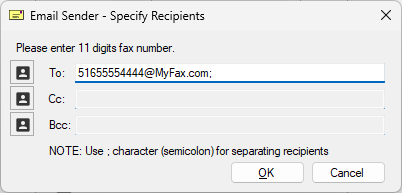
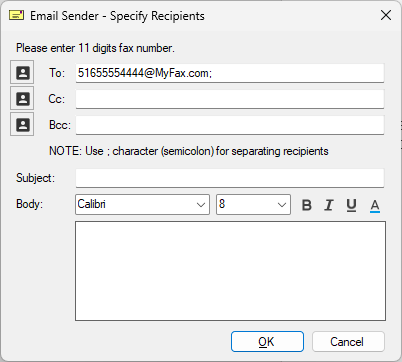
Users can configure the Email to Fax email sender window, what to display to the user which field can be populated by the user.
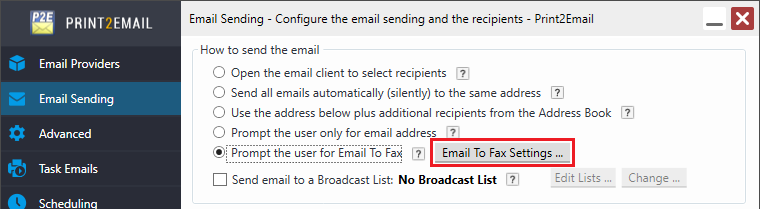
To configure the Email to Fax email sender window, please navigate to the Email Sending tab, make sure the Prompt the user for Email to Fax option is enabled, and click the Email to Fax Settings button.
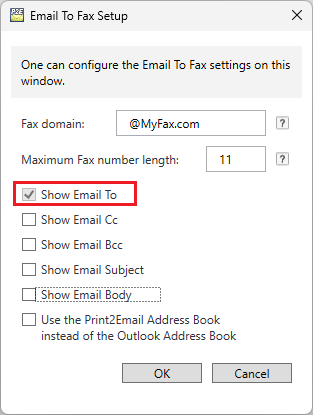
In the Email to Fax Setup window that appears, users can select or clear the options to control which fields are displayed in the Email Sender window.
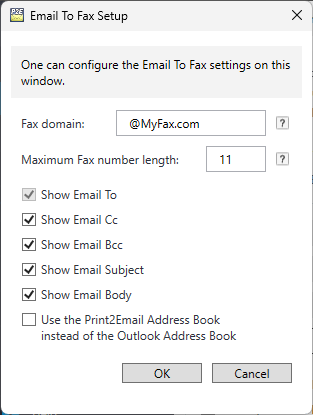
Use the Print2Email Address Book instead of the Outlook Address Book
In some Fax Service applications, it is required to use some special fields that are not part of the Outlook Address Book; therefore, Black Ice Software added the option to use the local Print2Email address book instead of the Outlook Address Book.
If the Print2Email is configured to send faxes and this option is checked, the “Email to Fax” email Sender window shows the Print2Email Address Book instead of the Outlook Address Book, even if the Outlook or MAPI compatible client option is selected on the Email Providers tab.
For example:
Fax Domain=@MyFax.com
Maximum Fax number length=11
Note: If the ‘Maximum Fax number length’ entry is empty or set to ‘0’, the Print2Email will not validate the entered fax number.
In the example, the fax domain will be set to ‘@MyFax’ by default, and the fax number length will be limited to 11 digits as shown in the example below.
The simplified user interface can be further limited to only use the To: field by unchecking the Show Email Cc: and the Show Email Bcc: checkboxes on the Email to Fax Setup window, as shown in the example below:
On the Email Sender window, only the To: field will be enabled.